
Claude Team plan: how to set it up for your business
For the owner or operations lead who has to roll Claude out to a team in the EU or UK. By the end you will have paid seats, a VAT invoice, invited staff and a spending cap.

In this article8
You can set up a Claude Team plan in eight steps without a developer: buy seats, get a VAT invoice in the company name, verify your domain, add people and roles and cap spending. It takes one to two hours. Ten people cost about 178 EUR or 150 GBP a month before VAT. Correct as of 20 October 2026.
Why now? In January 2026 Anthropic cut Team prices, and its help centre now lists a two-person minimum. On 15 September 2026 it expanded its Claude for Small Business package and, on its blog, recommended the Team plan for any business with more than one person. This guide shows where each setting lives.
Still deciding whether you need an AI assistant? Start with what actually changes in the first year of AI at work.
Before you start
Have these ready first.
- A work email on your company domain. Where to get it: your Google Workspace or Microsoft 365 mailbox. The person creating the organisation cannot use a gmail.com address.
- A company card. Where to get it: Anthropic accepts credit, debit and prepaid cards, charged at purchase.
- Your VAT number and company address. Where to get it: your existing invoices. You enter them at checkout.
- A list of people and their emails. Where to get it: HR, or the user list in your email admin console.
- Access to your domain settings (DNS). Where to get it: the company you bought the domain from. Often whoever built your website has it.
- Time. Where to get it: one to two hours of work. Sometimes a day waiting for whoever manages your domain.
Anthropic's list of supported countries includes Germany, Ireland, Poland and the United Kingdom. A "seat" is a licence for one named person, and only that person may use it.
How to set up a Claude Team plan step by step
The labels below are the English ones Anthropic uses. Most settings sit under "Organization settings", which opens when you click your initials in the lower left corner.
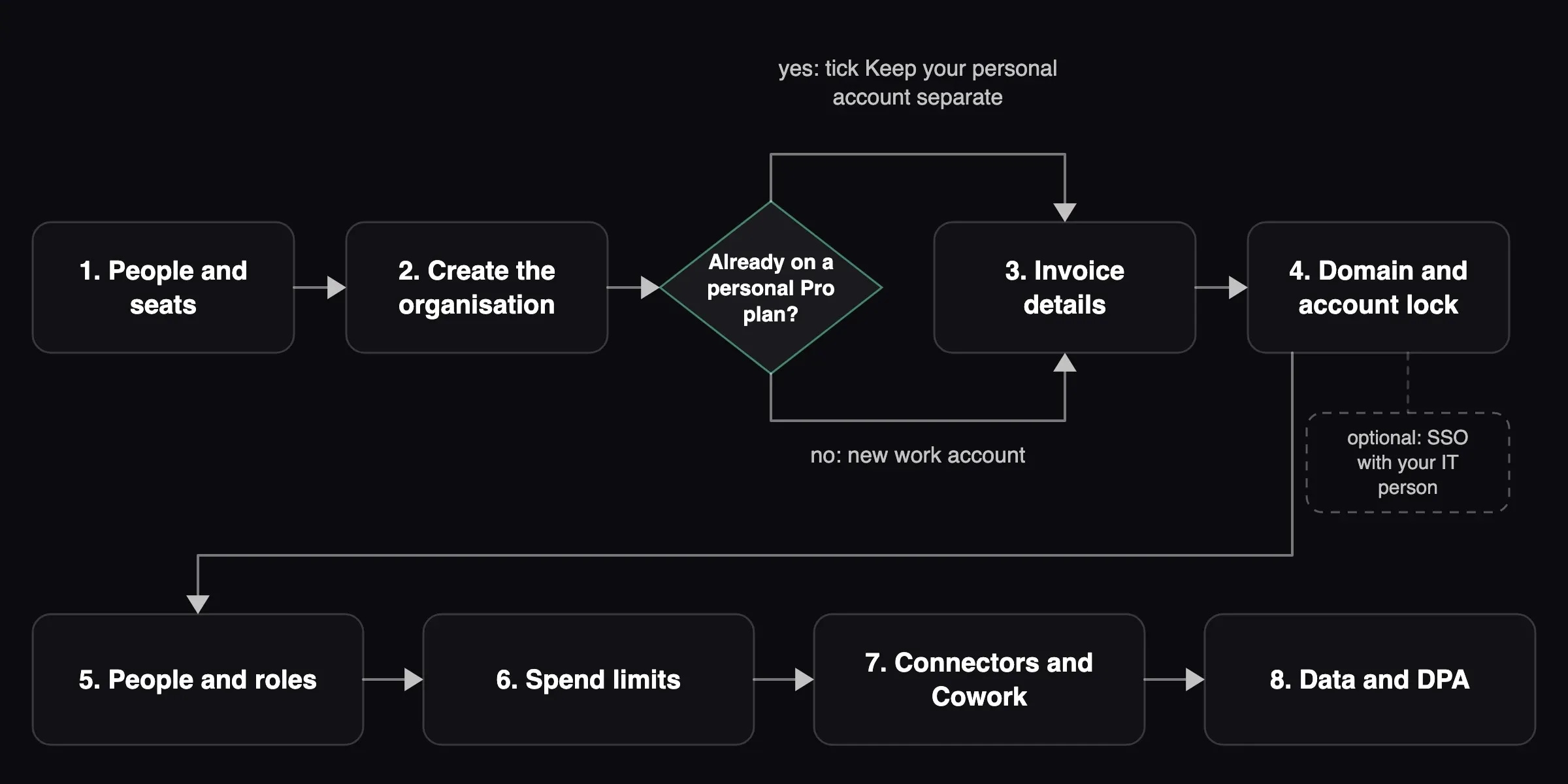
Step 1. List your people and choose seat types
Decide who gets a Standard seat and who gets Premium. Each person has their own usage limit, counted per session and per week. Premium gives about five times the usage of Standard and costs five times as much. If unsure, start everyone on Standard.
How you know it worked: every person on the list has a seat type and role.
Step 2. Create the organisation and enter company details at checkout
Go to claude.ai/login, enter your work email and choose the Team plan. Pick annual or monthly billing. At checkout, enter the company address and your VAT number in the "Tax or VAT ID" field. Do it now: later changes only apply to future invoices, and on annual billing the first invoice covers the whole year.
Already paying for a personal Pro or Max plan on that address? Start at claude.ai/upgrade instead. If you see a checkbox called "Keep your personal account separate" and leave it unticked, your account becomes the company organisation and some of your content, including chats and projects, moves across for good. Tick it to keep personal chats separate. Without the box (for example with an App Store subscription), you get a separate organisation anyway.
Where: claude.ai/login or claude.ai/upgrade.
How you know it worked: when you click your initials, you see "Organization settings".
Step 3. Buy the right seats and set the invoice name
Buy the number of Standard and Premium seats from your step 1 list. You cannot give anyone a Premium seat until you have bought one. If the card is in a person's name, tick "Use a different name on invoices" and type the company name in the "Bill to" field.
Where: seats: Organization settings → Organization and access → Manage under "Total seats" → Add or change seats → the + button → Next → Confirm & purchase. Invoice name: Organization settings → Billing.
How you know it worked: the "Seat breakdown" shows the right number of each seat type.
Ask your accountant how to treat VAT on a service bought from abroad before paying for a full year.
Step 4. Verify your domain and block new organisations
DNS is the set of domain settings that says where your website and email live. Verification adds one line there, a TXT record. It does not change how email or the website works.
Add the domain and click Verify. Copy the whole value starting with "anthropic-domain-verification-" (longer than the visible box) and save it: it is not shown again. Ask whoever manages your domain to add it as a TXT record at the root of the domain. Verification usually takes about 10 minutes, though DNS changes can take up to 24-48 hours to spread. Carry on with step 5 meanwhile.
Once the domain shows as verified, switch on "Restrict organization creation". Staff can then no longer create new Claude organisations, personal ones included, with company addresses.
Where: Organization settings → Organization and access → Domains → Add or edit domains → Verify, then Refresh. The restriction: same page, Security section.
How you know it worked: the domain shows as verified and the restriction toggle is on.
You can skip SSO (single sign-on, meaning staff sign in with their Google or Microsoft work account instead of a separate login). The Team plan includes it, but a technical person should set it up.
Step 5. Add people and assign roles
Add the people from your list. For each one, pick a seat type and a role. The Team plan has four roles:
- User works with Claude,
- Admin can also invite and remove people,
- Owner can also pay, buy seats, switch on integrations and see usage analytics,
- Primary Owner (always one person) can also export the company's data.
Make two people Owners: Owners cannot remove themselves, so a second Owner is your backup.
Where: Organization settings → Members → Add member. Several addresses at once: Bulk add, with addresses separated by commas or new lines.
How you know it worked: everyone has a seat and role. Invitations expire after 21 days and hold seats from the moment you send them.
Common mistake: leaving the invite link on. On Team it is enabled by default, and anyone who joins through it gets a free seat. Turn it off; named invitations keep working.
Where: Organization settings → Organization and access, invite link.
Step 6. Decide on extra usage and caps
When someone reaches their limit, they wait for it to reset. Usage credits let them carry on: you buy them up front and they are used at Anthropic's pay-as-you-go API rates. Leave them off for the first month.
If you turn them on, set monthly caps for the organisation and individuals at once, and be careful with auto-reload ("Reload when balance reaches"), which tops up without asking. Spending can slightly exceed a cap.
Where: switch on: Organization settings → Usage → Usage credits → Enable. Organisation cap: Usage and spend limits → Adjust limit. Per person: Spend limits by user → the three-dot menu next to the person → Edit limit.
How you know it worked: the organisation shows an amount instead of "Unlimited".
Step 7. Decide on connectors and Cowork
A connector links Claude to another tool, such as email, a calendar or a CRM (customer relationship management system). Each person signs in to the connector themselves, and Claude only sees what that person can see. The exception is a custom connector that uses one shared login. Start with one, such as the calendar, and choose which actions need the person's approval.
Cowork is the mode in which Claude carries out tasks on files and in the browser. It is on by default. History from sessions run on a computer stays on that computer, and admins cannot delete it centrally. If your team handles files containing client data, switch Cowork off until your rules are written.
Where: Organization settings → Connectors → Browse connectors → Add to your team. Action approvals: Customize → Connectors → Tool permissions. Cowork: Organization settings → Cowork → "Enable for your organization".
How you know it worked: the connector list holds only what you chose.
Step 8. File the data protection paperwork
Anthropic's Data Processing Addendum (DPA, the contract that covers how a supplier processes personal data for you under GDPR) is automatically part of its Commercial Terms. You do not sign it separately. Save a copy from anthropic.com/legal/data-processing-addendum and keep it with your GDPR or UK GDPR records, next to your record of processing activities.
Anthropic does not train models on commercial plan data by default. Feedback sent with the thumbs up or down button may be used for training and is kept for up to five years. A deleted chat disappears from history at once and is purged from Anthropic's systems within 30 days.
Where: company data export (Primary Owner only): Organization settings → Data and privacy → Export Data.
How you know it worked: the DPA is filed and your team has the rules from "Template to copy".
What it costs
Prices come from Claude's pricing page and Anthropic's Team plan article, accessed 20 October 2026. They are US prices before tax; currency and tax vary by region, so check the checkout screen.
- Team, Standard seat. Price per person per month: 20 USD billed annually or 25 USD billed monthly. For whom: most of your team.
- Team, Premium seat. Price per person per month: 100 USD billed annually or 125 USD billed monthly. For whom: people who work with Claude for hours every day.
- Enterprise. Price per person per month: 20 USD per seat billed annually, plus usage at API rates, 20-seat minimum. For whom: companies above 150 people or with audit requirements.
The examples use cross rates from the National Bank of Poland's table A of 19 October 2026 (1 USD = 0.8918 EUR = 0.7503 GBP), before VAT.
- 10 people. Assumption: 10 Standard, annual billing. Per month: 200 USD, about 178 EUR or 150 GBP [estimate: NBP cross rate].
- 50 people. Assumption: 45 Standard and 5 Premium, annual billing. Per month: 1,400 USD, about 1,249 EUR or 1,050 GBP [estimate: NBP cross rate].
- 200 people. Assumption: Team stops at 150 seats, so Enterprise: 200 × 20 USD. Per month: 4,000 USD, about 3,567 EUR or 3,001 GBP, plus usage [estimate: usage depends on how your team works].
Annual billing means the full year up front. Removing a person gives no refund, and you can only reduce the seat count at renewal. For what else goes into the bill, see what you actually pay for in an AI implementation.
What can go wrong
Five common problems.
- Personal chats end up in the company workspace. Prevent it by ticking "Keep your personal account separate" in step 2.
- Someone joins through the invite link and takes a seat. Prevent it by turning the link off in step 5. Fix it by removing the person under Members.
- The bill grows through credit auto-reloads. Prevent it with the caps in step 6. A changed organisation cap applies immediately.
- Nobody can sign in after SSO is switched on. Prevent it by testing before you turn on "Require SSO for Claude". If an admin can still sign in, switch the requirement off. If nobody can, contact Anthropic support from an Owner's email address.
- A leaver takes knowledge with them. After you remove someone, the team loses access to their chats, though the Primary Owner still sees them in a data export. Projects shared with the whole organisation stay under the Team tab, so keep shared knowledge there.
What you can do yourself and where you need help
You can do steps 1-3 and 5-7 alone. Help is useful for DNS, SSO and legal judgement.
- Purchase, invoice, seats, roles. Yourself: yes.
- TXT record in DNS. Yourself: if you can reach your domain panel. IT administrator: yes, or your domain provider.
- SSO with Google or Microsoft. IT administrator: yes.
- Spend caps, connectors, Cowork. Yourself: yes.
- Team rules and training. Yourself: yes. Implementation partner: for larger teams.
- CRM connectors and automations between tools. Implementation partner: yes.
- GDPR assessment: record of processing, impact assessment. Lawyer or DPO: yes.
If you want someone to go through these steps with you and stay for the first weeks, see our AI administration service.
How to check it is working
After two to four weeks, open the analytics: click your initials, then "Analytics" (its own item in the same menu). Look at four things:
- weekly active members against seats bought (if half the seats sit idle, do not buy more),
- people who keep hitting their limit (candidates for Premium),
- spend on usage credits against your cap,
- connector requests under Organization settings → Notifications.
Also ask three people which task now takes them less time. On keeping a person in charge of AI output, see human oversight of AI in a small business.
Template to copy
Send this to your team on the day invitations go out.
Subject: Claude at [company] from [date]: ground rules

From [date] you have access to Claude on our company plan. The invitation will arrive at your work email. Sign in with that address only.

You may:
- draft, summarise and check company texts, emails and documents,
- upload files from folders you already have access to.

You may not:
- paste national ID numbers, health data, passwords or card numbers,
- use a personal Claude account or other AI tools for company work,
- share your account with anyone else.

Feedback (thumbs up or down): do not use it in chats that contain client data. Feedback is sent to Anthropic.

Cowork: [on / off until further notice].

A person checks Claude's answer before it goes to a client.

Questions and requests for new integrations: [name], [email].
We checked these steps against Anthropic's documentation on 20 October 2026. We have not clicked through them on a test account. We are not an Anthropic partner and we are not a law firm: leave the GDPR assessment to your lawyer or data protection officer.
Sources
- Anthropic, What is the Team plan?, accessed 20 October 2026.
- Anthropic, Get started with the Team plan, accessed 20 October 2026.
- Anthropic, Set up single sign-on (SSO), accessed 20 October 2026.
- Anthropic, Manage usage credits for Team and seat-based Enterprise plans, accessed 20 October 2026.
- Anthropic, How do I view and sign your Data Processing Addendum (DPA)?, accessed 20 October 2026.
- Anthropic, Plans & pricing, accessed 20 October 2026.
- National Bank of Poland, table A of average exchange rates no. 203/A/NBP/2026, 19 October 2026.
Questions & Answers(FAQ)
A Standard seat costs 20 USD per person per month billed annually, or 25 USD billed monthly. A Premium seat costs 100 USD or 125 USD. Prices exclude tax and are shown for US customers; your currency and VAT depend on your billing address. For 10 Standard seats on annual billing, expect about 178 EUR or 150 GBP a month before VAT.
Two. Anthropic's help centre says Team plans need at least two members and support up to 150 seats. Some older guides and AI answers still mention a five-seat minimum. Above 150 seats, Anthropic points you to the Enterprise plan, which starts at 20 seats.
Not by default. Anthropic says it does not use inputs or outputs from its commercial products to train models. The exception is feedback: if a staff member rates a chat with the thumbs up or down button, that chat may be used for training. Your team rules should say when not to send feedback.
Yes. Anthropic's SSO guide says single sign-on is available on Team and Enterprise plans, with setup guides for Google, Microsoft Entra ID, Okta and others. Some AI answers still say it is Enterprise only. You need a verified domain first, and you should test logins before you switch on "Require SSO for Claude".
By default the account is upgraded in place, your Pro subscription is cancelled with a refund for the unused part of the period, and some content, including chats and projects, moves into the company organisation for good. To keep your personal chats separate, tick "Keep your personal account separate" at claude.ai/upgrade before you confirm. App Store subscriptions create a separate organisation instead.
About the author

Mateusz Cieśliński
Co-Founder, DevOps Engineer
Matthew Cieslinski is a co-founder and DevOps Engineer at AppWave, a software house that builds AI systems that companies actually use. He specializes in cloud infrastructure (AWS), container environments (Docker) and the operational side of AI deployments - so that they work stably in production, not just in the pilot phase. He operates from Lodz, Poland.
Got a similar process on your side?
If something in this article sounds like your day-to-day - let's talk. We'll tell you plainly what can be improved, and what's not worth touching.
Services related to this topic
Customer service automation
Not another chatbot. An agent wired into your email, CRM and knowledge base that takes over repetitive work.
AI implementation review
Before you spend anything - we show, in numbers, where AI pays off and whether it's legal.
MVP ready to run
A working system tailored to your process. From 35,000 PLN net, with a clearly defined scope, price and delivery time.